
Securing your XpressBot account is essential—especially when managing chat automation, customer data, and business communication. Two-Factor Authentication (2FA) adds an additional layer of protection by requiring a one-time code along with your password. This guide helps you quickly set up 2FA and safeguard your account from unauthorized access.
Two-Factor Authentication in XpressBot uses an authenticator app to generate a time-based code, which you’ll enter every time you log in—making it much harder for hackers to breach your account.
- StrongerSecurity – Prevent access from unknown devices, even with a stolen password.
- DataProtection – Shield customer messages, automation flows, and admin tools.
- AccountRecovery – Backup codes make sure you’re never locked out.
- UserControl – Stay in charge of your automation without disruption.
- EasyToSetup – Activation takes just a few steps!
Steps to Enable 2FA in XpressBot #
Step 1: Access Your Account Settings #
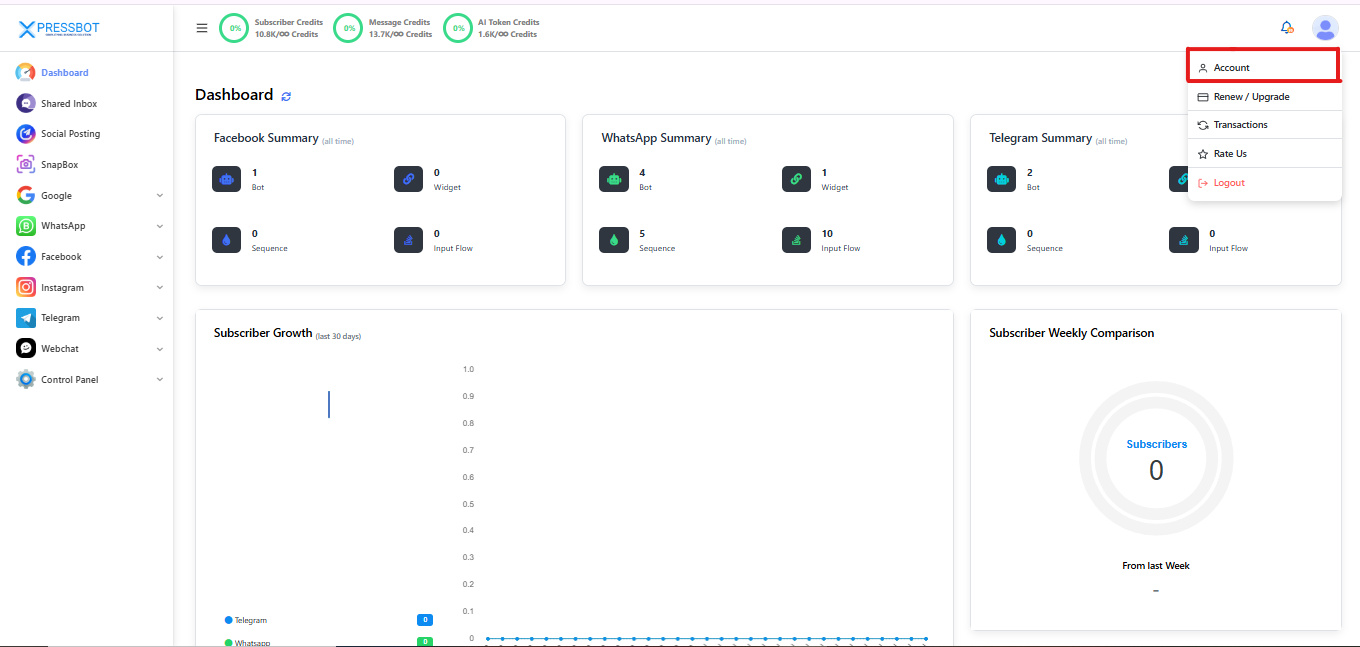
- Log in to your XpressBot dashboard.
- Click on your profile icon in the top-right corner.
- Select “Account Settings” from the dropdown menu.
Step 2: Enable Two-Factor Authentication #
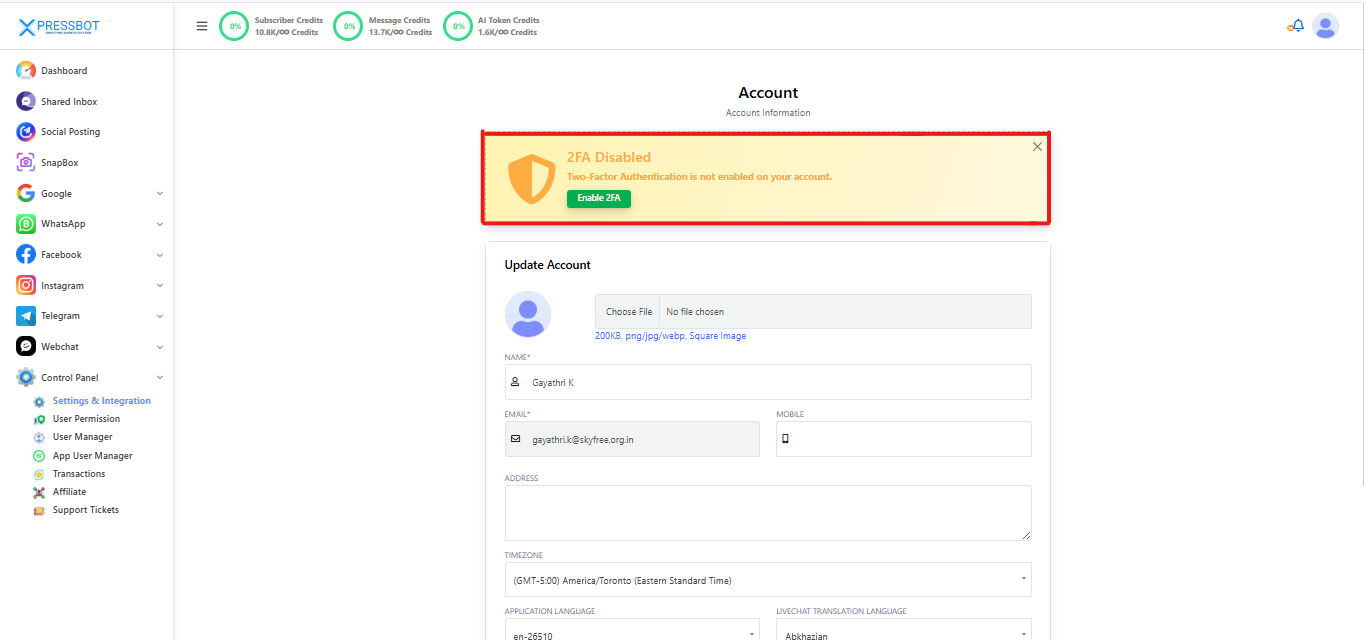
- In the Account Settings page, find the notification box labeled “2FA Disabled.”
- Click the green button labeled “Enable 2FA” to begin the activation process.
Step 3: Scan the QR Code & Enter the OTP #
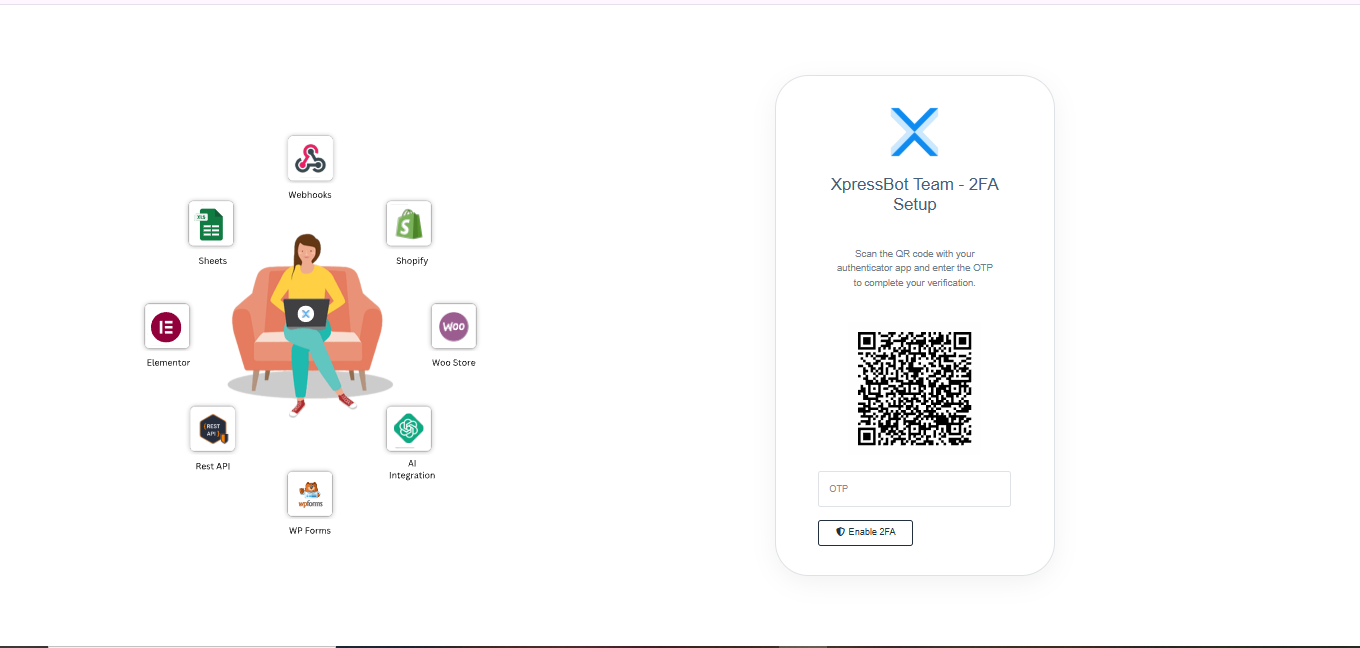
- A QR code will now appear on your screen.
- Open your authenticator app (such as Google Authenticator or Authy) on your smartphone.
- Use the app to scan the QR code displayed on the XpressBot 2FA setup page.
- After scanning the QR code, your authenticator app will generate a One-Time Password (OTP).
- Enter this OTP into the designated input field on the XpressBot 2FA setup page.
- Click the “Enable 2FA” button to confirm and complete the activation process.
Step 4: Save Recovery Codes #
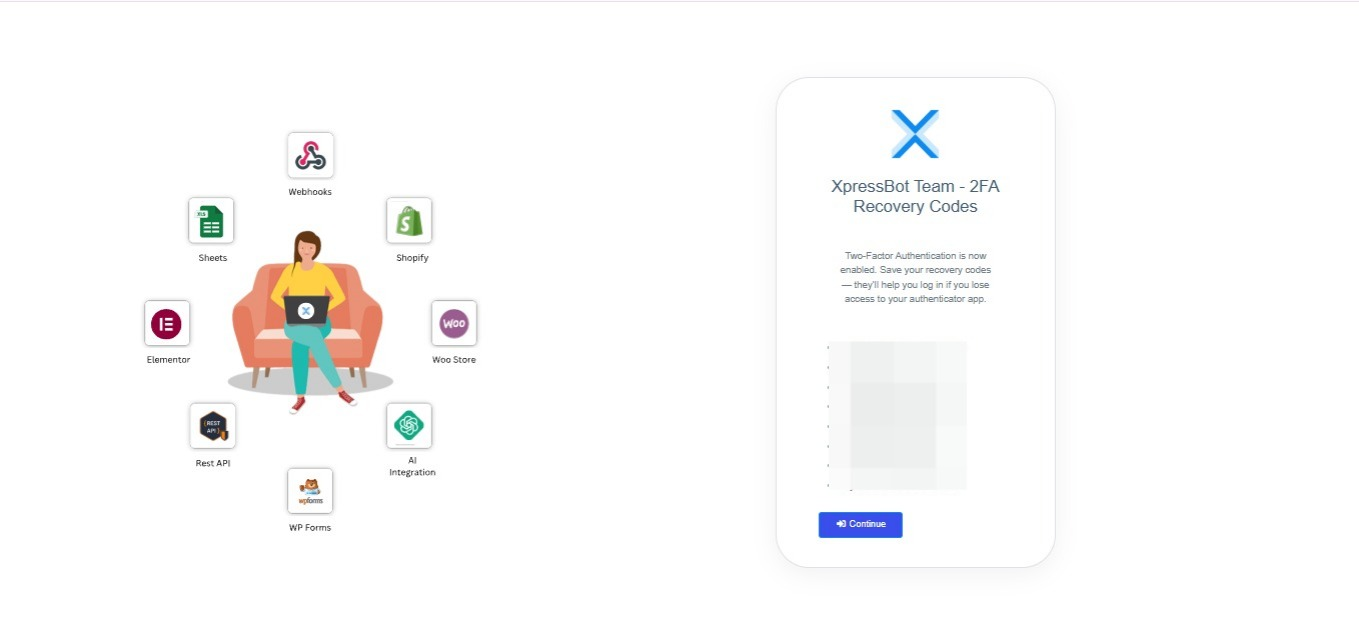
- After enabling 2FA, XpressBot will display a set of recovery codes.
- These codes can be used to regain access to your account if you lose your authenticator device.
- Make sure to store these codes securely in a safe place.
- Once saved, click “Continue” to complete the setup.
Step 5: Confirm 2FA Activation #
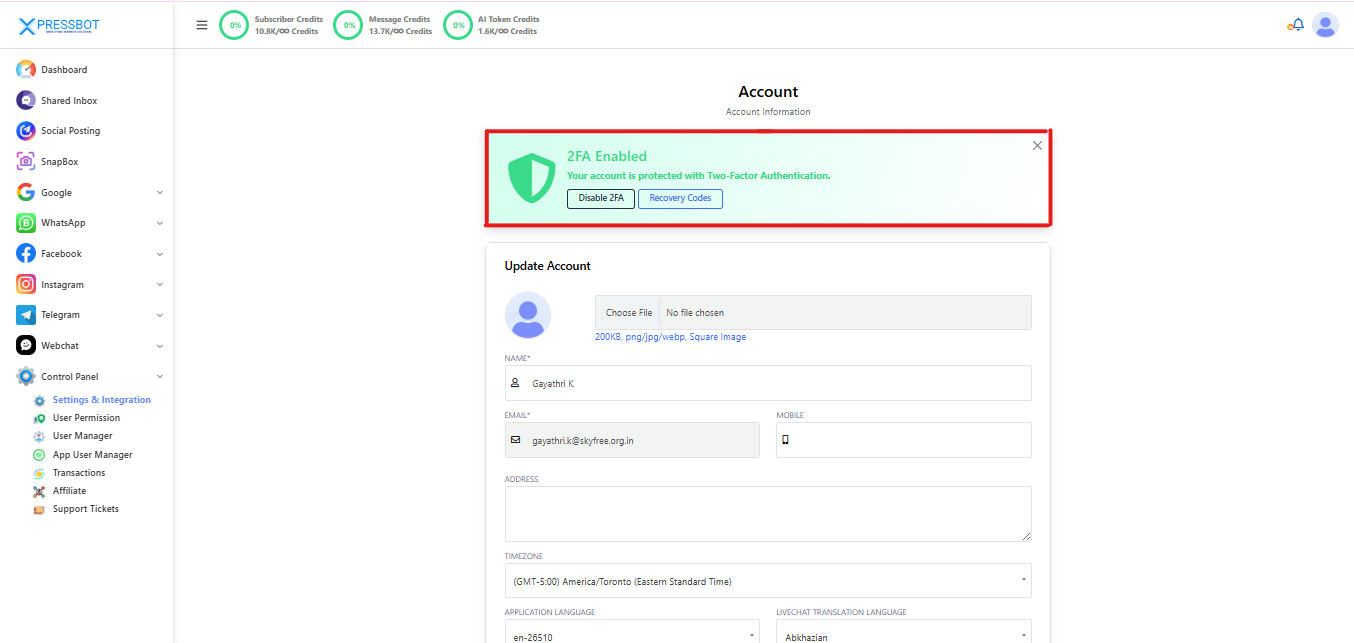
- Once 2FA is successfully enabled, your XpressBot Account Settings page will display a “2FA Enabled” notification.
- From this section, you can choose to disable 2FA or view your recovery codes at any time for future use.
1. What is Two-Factor Authentication (2FA) in XpressBot? #
- 2FA is an added layer of account security that requires a time-based one-time password (TOTP) generated by an authenticator app, in addition to your regular login password.
2. Why should I enable 2FA on my XpressBot account? #
- Enabling 2FA ensures your account stays protected even if your password is compromised. It’s especially important if you’re managing automation flows, customer conversations, or team member access.
3. Which authenticator apps work with XpressBot? #
You can use any TOTP-compatible authenticator app, such as:
- Google Authenticator
- Authy
- Microsoft Authenticator
- 1Password
These apps generate the required OTP every 30 seconds.
4. Where can I enable 2FA in XpressBot? #
- Go to your XpressBot dashboard → Click your profile icon (top-right) → Choose Account Settings → Locate the “2FA Disabled” section → Click “Enable 2FA”.
5. How do I activate 2FA using the QR code? #
- Open your authenticator app → Tap Scan QR Code → Scan the code shown on the XpressBot screen → Enter the 6-digit OTP → Click Enable 2FA to confirm.
6. What are recovery codes in XpressBot? #
- Recovery codes are backup access codes shown after enabling 2FA. If you lose access to your authenticator app, you can use these codes to log in. Store them in a safe place.
7. Can I disable 2FA later? #
- Yes, you can return to the Account Settings page and disable 2FA at any time. However, it’s strongly recommended to keep it enabled to maintain your account’s security.
8. What if I lose access to my authenticator app? #
- If you lose your device or app, use one of your saved recovery codes to log in. Once inside, you can either reset or disable 2FA through the Account Settings panel.
9. Is 2FA mandatory in XpressBot? #
- 2FA is optional but highly recommended—especially for users who manage business-critical chatbots, team members, or customer data.
10. Can I re-enable 2FA on a new device? #
- Yes. First, disable 2FA from your old device via Account Settings. Then, scan the QR code again using the new device to set up 2FA afresh.
11. Can team members have individual 2FA setups? #
- Yes. Each XpressBot user or admin can enable 2FA individually for their own login. This ensures that each member’s access is secured independently.
12. Will enabling 2FA affect chatbot performance? #
- No. Enabling 2FA only impacts login authentication and does not affect chatbot speed, performance, or automation workflows.