
Recovering abandoned carts is one of the fastest ways to increase your WooCommerce store’s revenue. With XpressBot, you can set up an automated WhatsApp reminder system that nudges customers to complete their purchases. This strategy ensures seamless recovery with high open rates and strong conversion results — all through WhatsApp.
Why Use WhatsApp for Cart Recovery?
Many shoppers add products to their carts but leave before checking out. WhatsApp reminders help you close those missed sales by offering:
- Over 90% open rates
- Direct, conversational messaging
- Automated follow-ups
- Personalized messages based on WooCommerce cart data
Step-by-Step Setup Guide
Step 1: Open the Bot Manager in XpressBot
- Go to Chatbot Manager from the sidebar.
- Select WhatsApp Bot for your connected business account.
- Scroll down and click Message Templates.
- Hit Create and choose your template type — WooCommerce Template or Default Template.
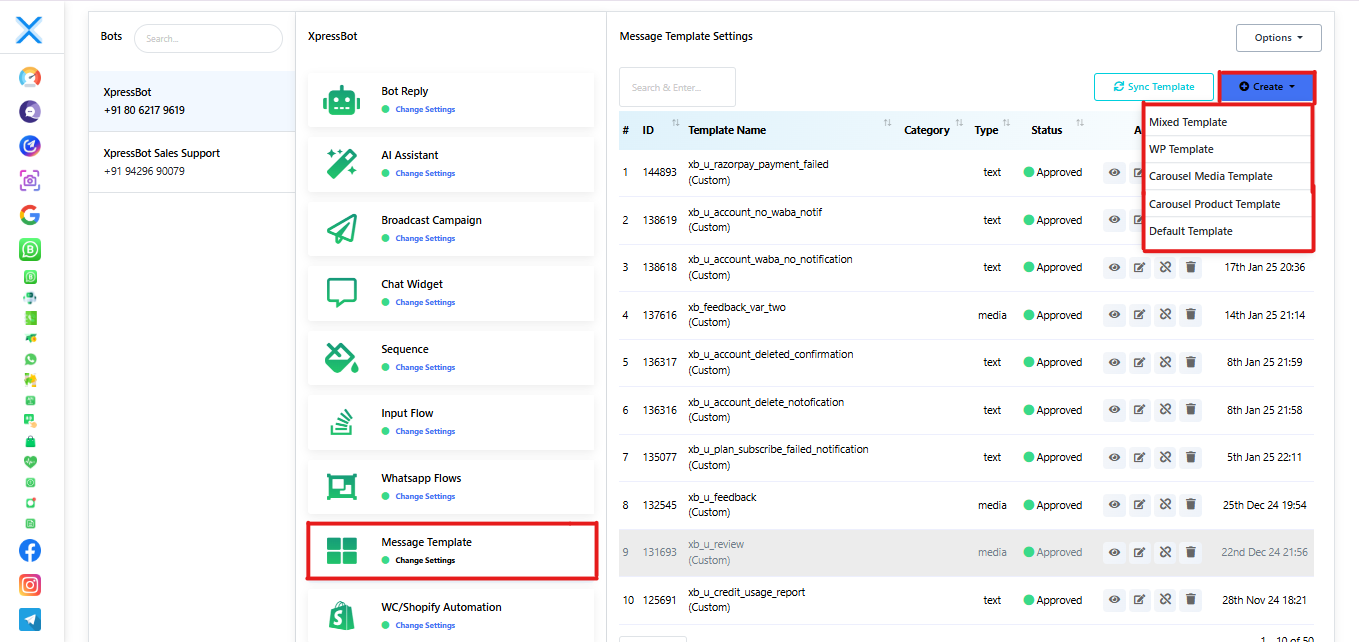
Step 2: Create a New WhatsApp Message Template in XpressBot
When creating your cart recovery template, fill in the details as follows:
- Template Name:
woo_cart_followup - Locale: English (US)
- Category: Marketing
- Header Type: No Header
Body:
Hi #User-Name#,
We noticed you left some great items in your cart — they’re still waiting for you!
Tap the button below to quickly finish your order before they’re gone.
Footer Text: Complete your checkout today.
Button:
- Type: Call to Action
- URL:
https://yourdomain.com/cart/ - Button Text: Checkout Now
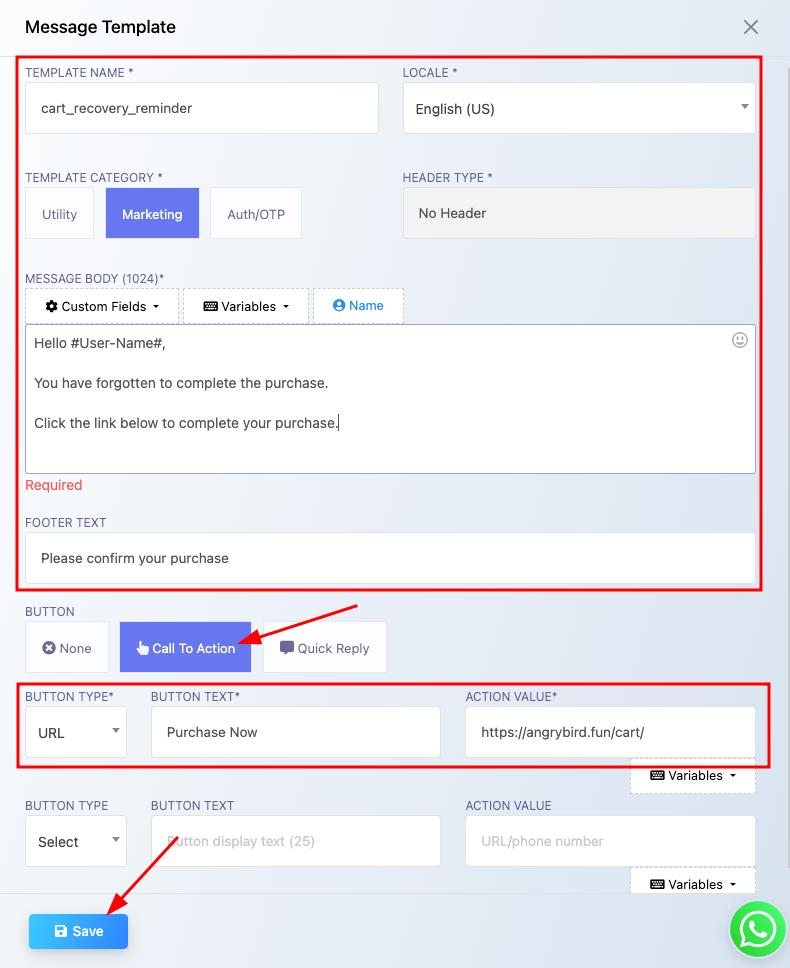
Step 3: Sync and Approve Your Template
After you’ve saved your template, click Sync Template in XpressBot.
Once Meta reviews and approves it (you’ll see a green dot and status marked Approved), the template is ready to be used in your WooCommerce cart recovery automation.
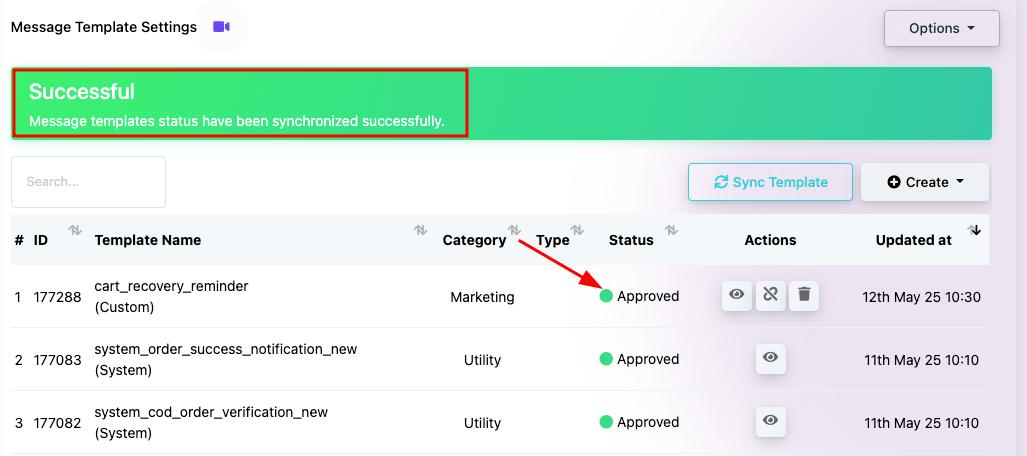
Step 4: Download the WooCommerce Abandoned Cart Plugin
- In XpressBot, go to Integrations from the sidebar.
- Select Shopify / WooCommerce API.
- Click Download WooCommerce Abandoned Cart Webhook Plugin.
This plugin will connect your WooCommerce store with XpressBot, allowing it to automatically detect and recover abandoned carts through WhatsApp.
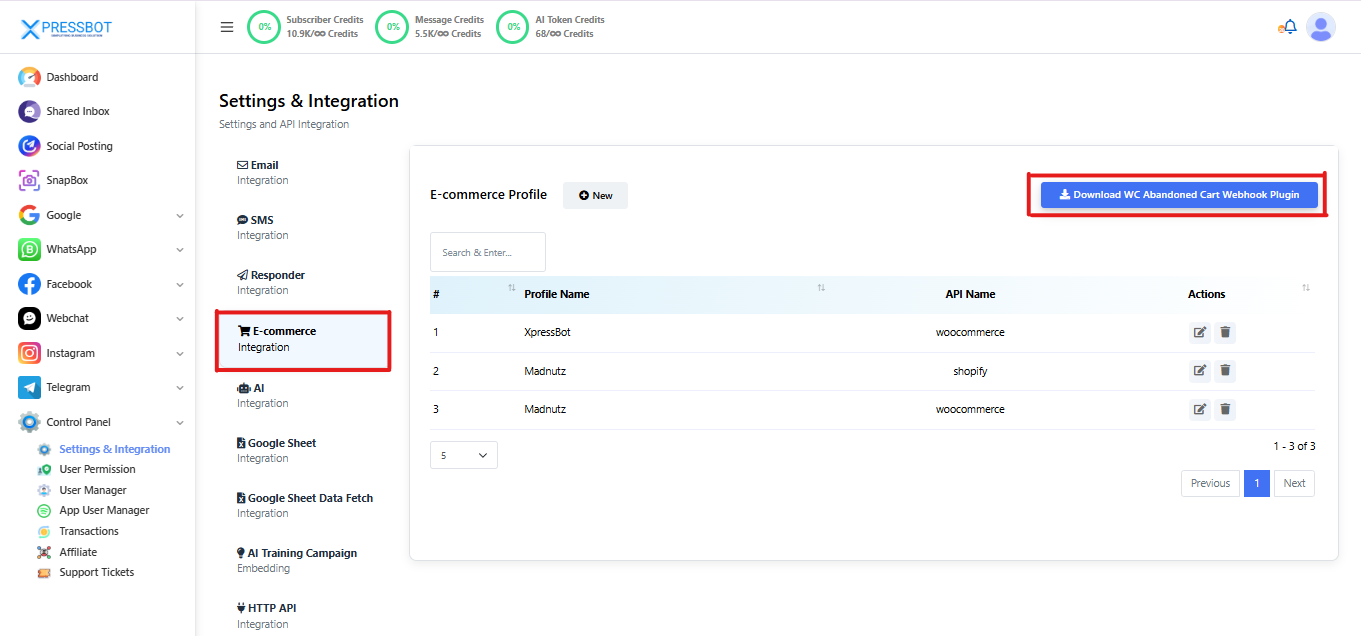
Step 5: Install the Plugin in WordPress
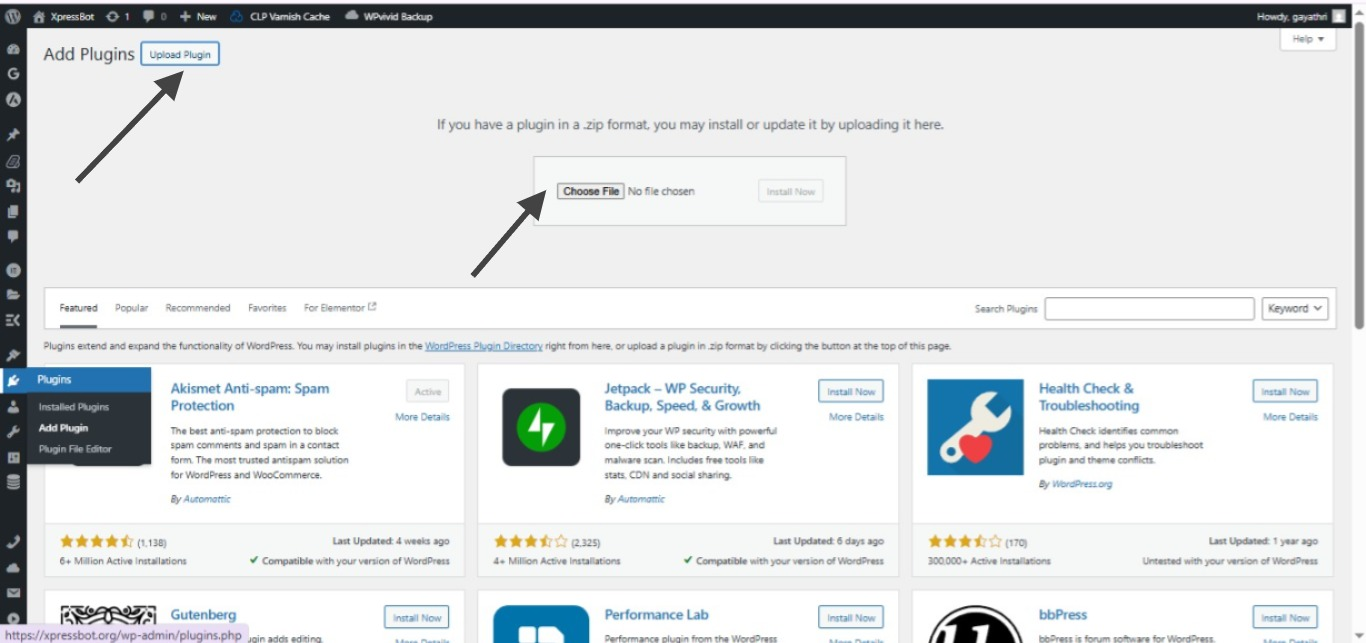
- In your WordPress Admin Dashboard, go to Plugins → Add New.
- Click Upload Plugin, select the
.zipfile you downloaded from XpressBot, and then click Install Now. - Once installed, click Activate to start using the plugin.
Step 6: Create a WhatsApp Workflow in XpressBot
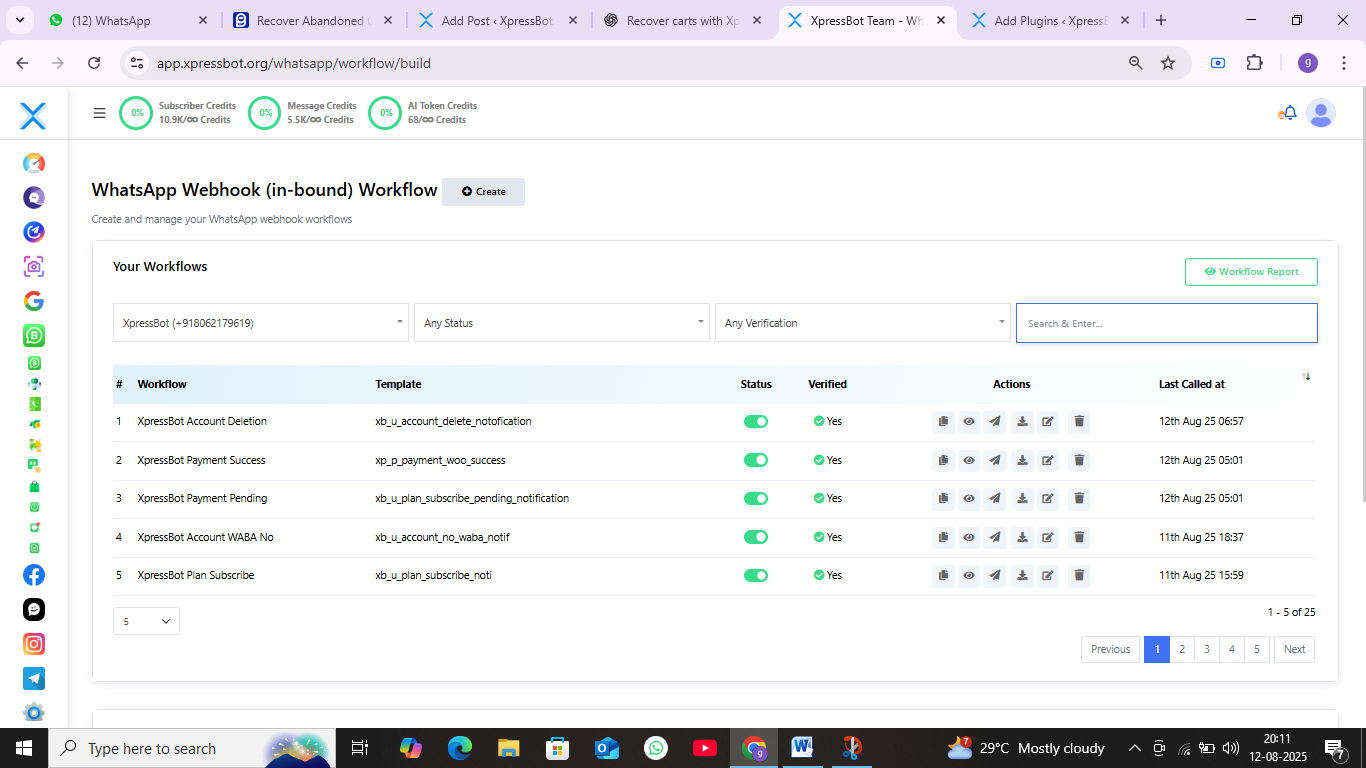
- In XpressBot, navigate to WhatsApp Automation → Webhook Workflow.
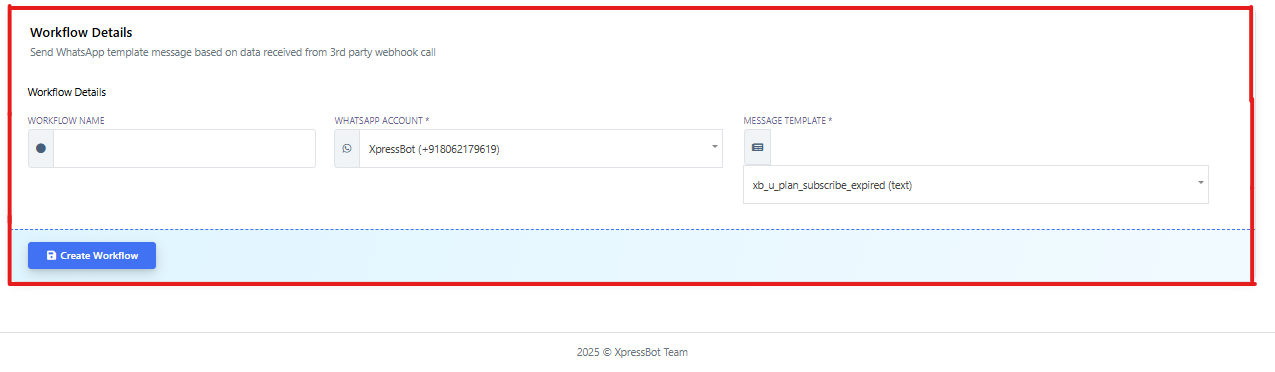
- Click Create and fill in the details:
- Workflow Name:
woocommerce_cart_recovery - WhatsApp Account: Select your connected WhatsApp bot.
- Message Template: Choose your previously approved cart recovery template.
- Workflow Name:
This workflow ensures that whenever a cart is abandoned in WooCommerce, XpressBot automatically sends a WhatsApp reminder to the customer.
Click Create Workflow to save and activate it.
Step 7: Copy the Webhook URL
After creating the workflow, copy the Webhook Callback URL shown.
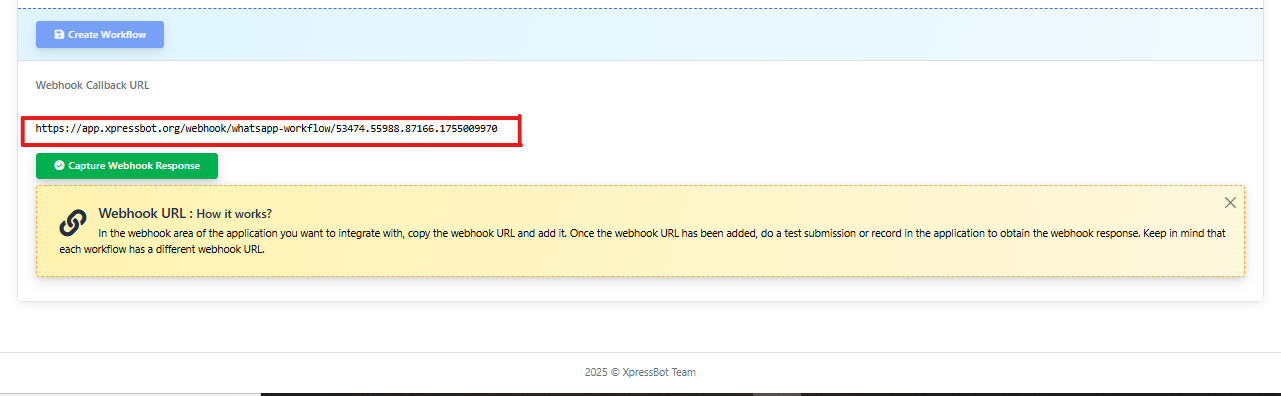
Step 8: Add the Webhook URL to the WordPress Plugin
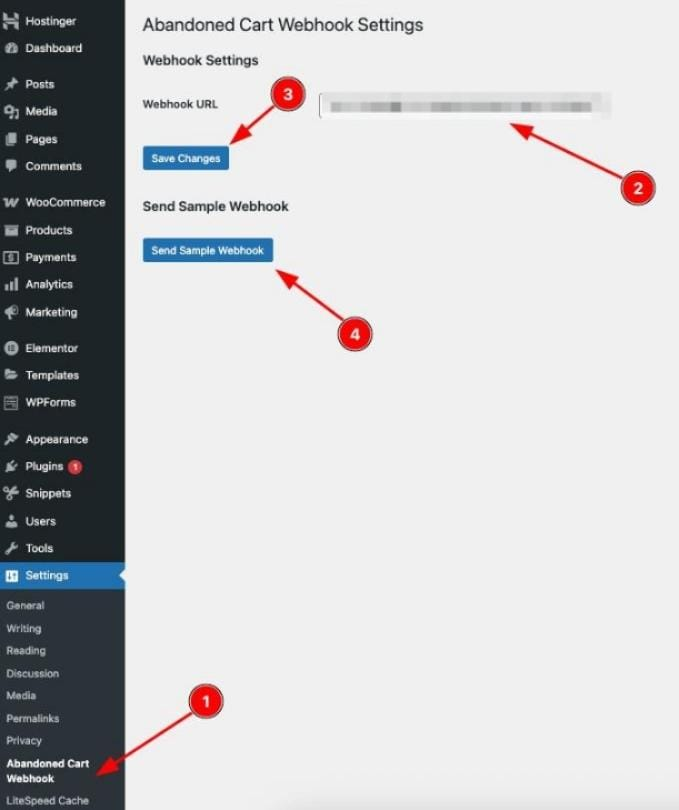
In your WordPress Dashboard, go to Settings → Abandoned Cart Webhook.
Paste the Webhook URL provided by XpressBot, click Save Changes, and then select Send Sample Webhook to test the connection.
Step 9: Map the Webhook Response
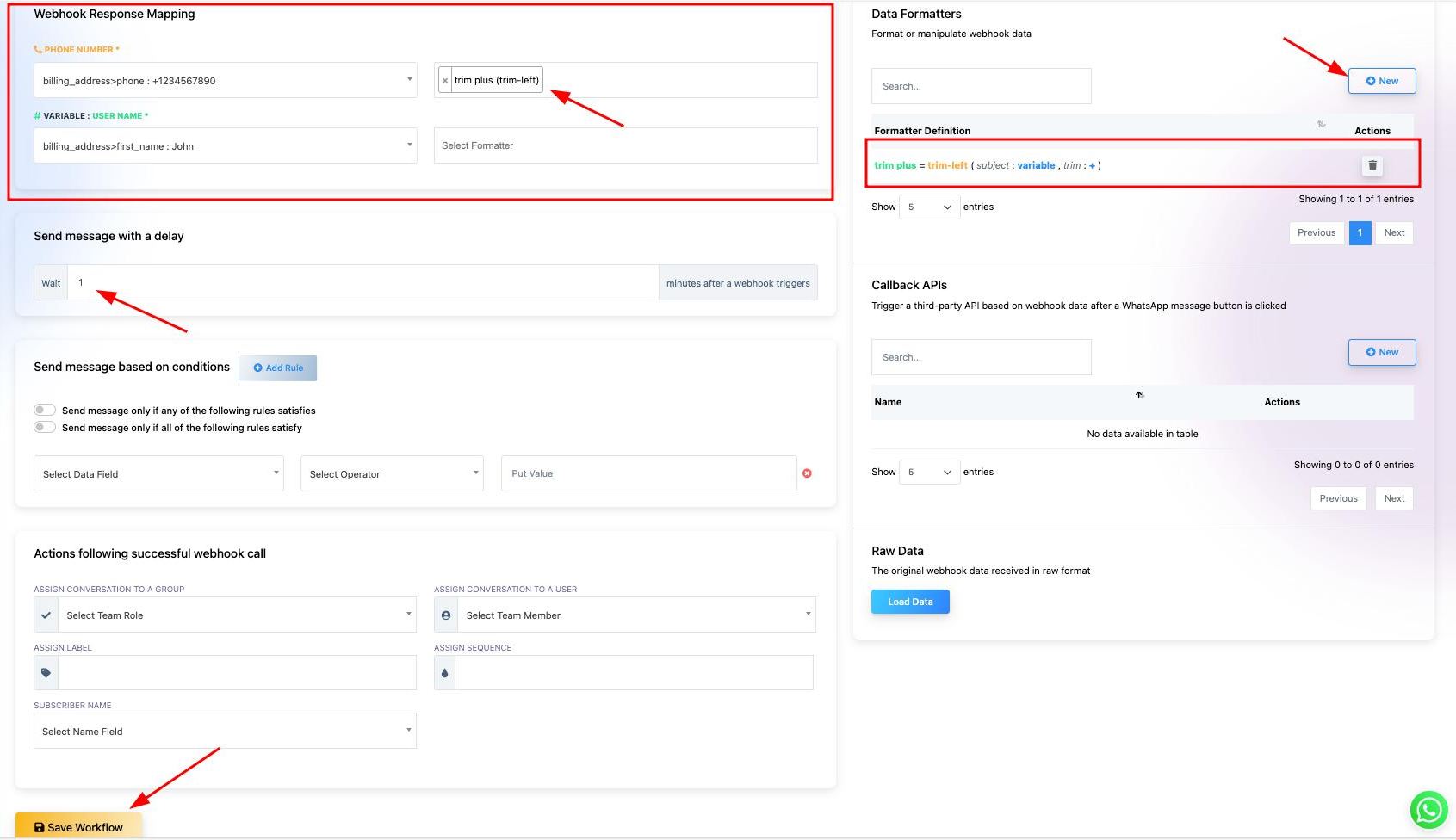
Back in XpressBot, map the incoming WooCommerce data to the workflow fields:
- Phone Number:
billing_address > phone - Customer Name:
billing_address > first_name - (Optional) Apply a formatter, such as trim-left, to remove country codes or extra characters.
Set your preferred delay (e.g., 1 minute) before sending the WhatsApp reminder, then click Save Workflow.
After a Cart Is Abandoned
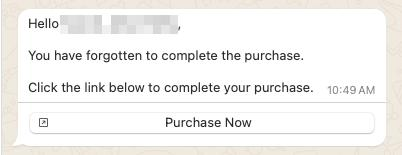
When a customer leaves their WooCommerce cart without completing checkout, XpressBot instantly detects it through the webhook connection.
It then sends a personalized WhatsApp message addressing the customer by name and including a “Checkout Now” button.
This button takes them straight back to their cart, making it quick and simple to finish the purchase — helping you recover lost sales effortlessly.
Conclusion
Recovering abandoned carts through WhatsApp automation with XpressBot is one of the fastest and most cost-effective ways to boost your WooCommerce revenue.
By sending timely, personalized reminders directly to customers’ phones, you tap into WhatsApp’s high open and response rates — turning lost opportunities into completed sales.
With just a few simple steps to set up the webhook, template, and workflow, your store can start recovering carts automatically and increasing profits around the clock.