
Automate Personalized Email Follow-Ups Using XpressBot and Mautic #
Want to streamline your email marketing by triggering personalized follow-ups directly from your chatbot conversations? By integrating your self-hosted Mautic setup with XpressBot, you can build powerful, automated email workflows that respond to actions within your WhatsApp or Messenger bots. Whether you aim to launch drip sequences, transfer contacts, or send behavior-based emails, this guide will show you how to connect XpressBot with Mautic efficiently.
What Is Mautic? #
Mautic is a robust, open-source marketing automation platform that gives you full control over your email marketing. With features like contact segmentation, email sequencing, and journey building, Mautic is ideal for marketers who prefer a self-hosted, customizable solution. Hosting it yourself also ensures greater data privacy, flexibility, and freedom from third-party limitations.
Benefits of Integrating XpressBot with Mautic #
Connecting XpressBot to Mautic opens up a whole new level of automation:
- Send personalized emails automatically based on user behavior in your chatbot.
- Trigger drip campaigns directly from WhatsApp or Messenger interactions.
- Synchronize leads between your chatbot and email system without manual work.
- Run campaigns using your own SMTP server to reduce email marketing costs.
Step-by-Step Integration Guide: Connect XpressBot with Mautic #
Follow these simple instructions to link your self-hosted Mautic system to XpressBot and start sending automated emails directly from your chatbot workflows.
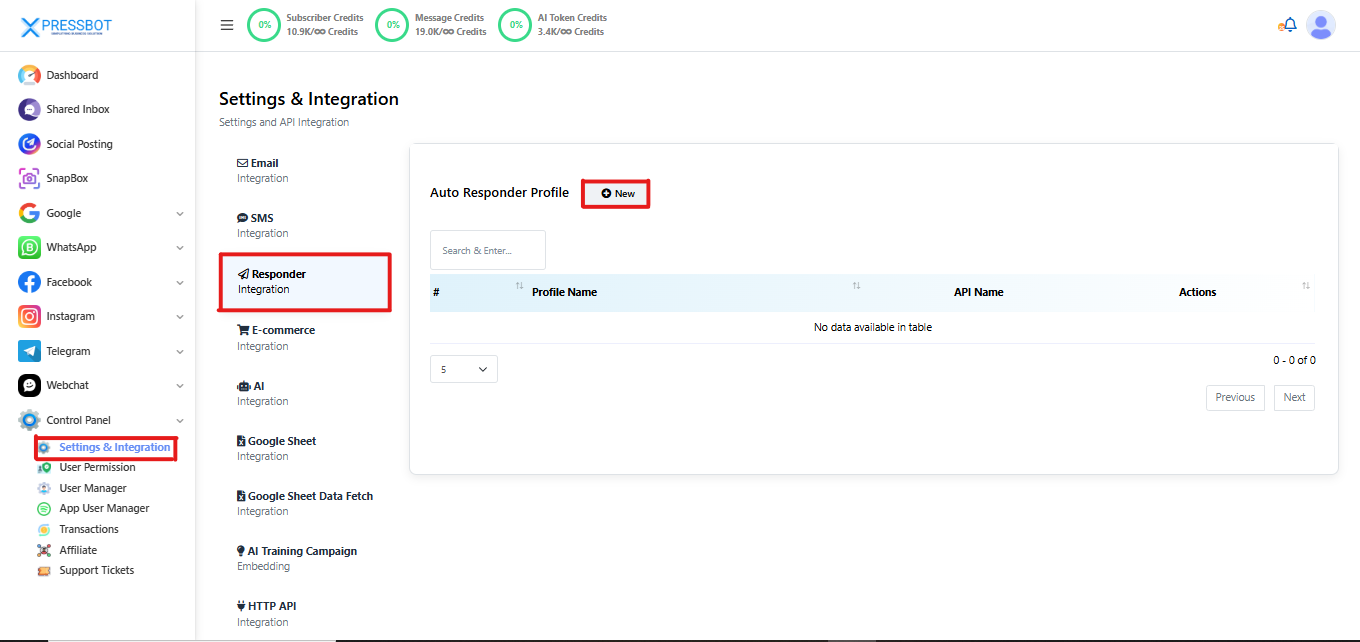
Step 1: Access Settings Panel #
Go to the Settings section via the left-side navigation menu.
Path: Dashboard → Management → Settings
Step 2: Open Autoresponder Integration #
Under the Settings and API Integration area, click on Responder Integration.
Step 3: Create a New Integration Profile #
Click the “New” button to begin setting up a new autoresponder connection.
Step 4: Choose Mautic from the List #
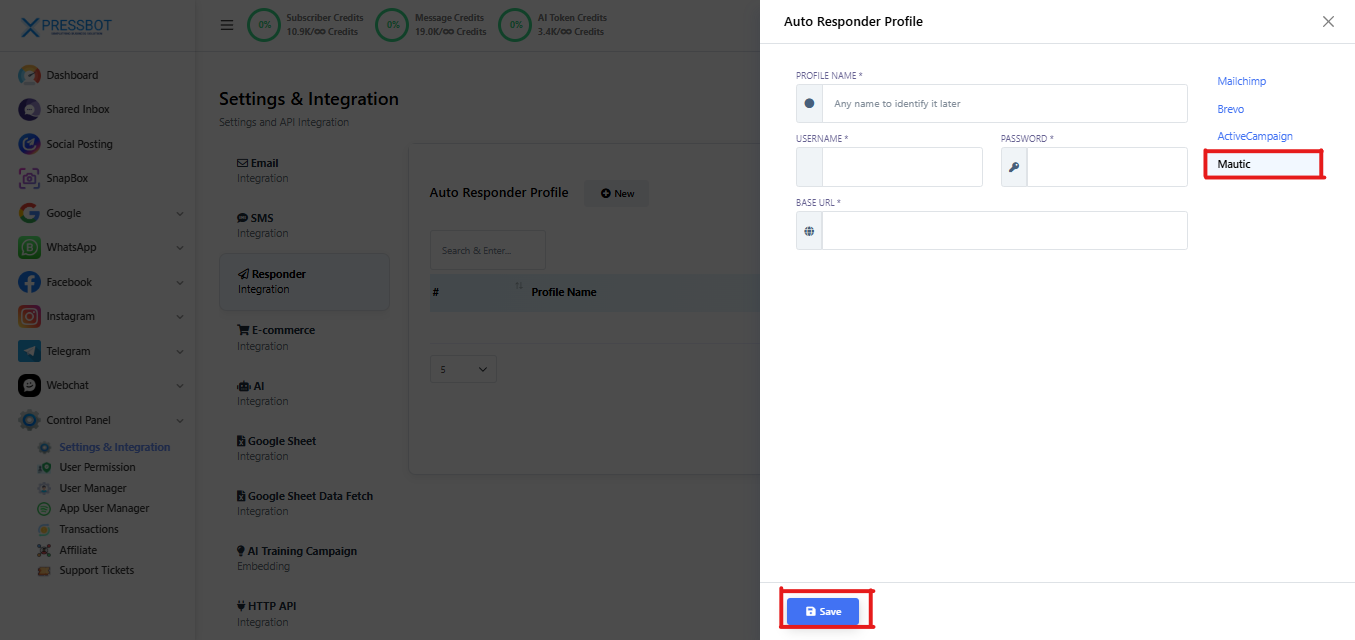
From the available autoresponder services, select Mautic as your platform.
Step 5: Enter Mautic Connection Details #
Provide the necessary information to connect with your Mautic instance:
- Profile Name: Give any custom name (e.g., “Xpress-Mautic”)
- Username: Your Mautic admin or API username
- Password: The password for the user
- Base URL: Your Mautic installation URL (e.g.,
https://yourdomain.com/mautic)
Note: Ensure your Mautic server:
- Has API access turned on
- Is running on HTTPS for secure communication
Step 6: Finalize and Save #
Click the “Save” button to complete the connection setup.
Frequently Asked Questions (FAQs):
1: Can I use a self-hosted Mautic instance with XpressBot?
Yes, XpressBot supports integration with self-hosted Mautic instances as long as your Mautic API is enabled and accessible via HTTPS.
2: What credentials are required for connecting to Mautic?
You’ll need:
- Your Mautic username (or API user)
- Password
- The Base URL of your Mautic instance (e.g.,
https://crm.mydomain.com)
Q3: Do I need technical knowledge to set this up?
Basic knowledge of where Mautic is hosted and how to access credentials is enough. The steps inside XpressBot are user-friendly.
Security & Access #
Q4: Why does my Mautic URL need to use HTTPS?
XpressBot requires HTTPS to ensure secure data transmission between your bot and Mautic.
Q5: My credentials are correct, but it says “Connection Failed.” What should I do?
Check:
- Is your Mautic server online?
- Is the API enabled in Mautic settings?
- Is your URL correct, including
/mauticif installed in a subfolder? - Are there firewall or SSL issues?
Email Automation & Campaigns #
Q6: Can I trigger drip campaigns from chatbot actions?
Yes! You can configure XpressBot to send user actions (e.g., form submissions, button clicks) to Mautic, which can trigger emails or journeys.
Q7: Can I send a welcome email right after a user subscribes on the chatbot?
Absolutely. Once the user is synced to Mautic, a campaign can be triggered immediately.
Q8: Can I personalize emails using chatbot data?
Yes, any data passed from XpressBot to Mautic (like name, email, tags) can be used in dynamic email content.
Lead Sync & Management #
Q9: Will all my chatbot leads go into Mautic automatically?
Only if you set up the correct trigger/action in XpressBot. You can choose which bot events send data to Mautic.
Q10: What if I want to update an existing contact in Mautic?
XpressBot can update existing contacts if the email matches. It won’t create duplicates unless configured otherwise.